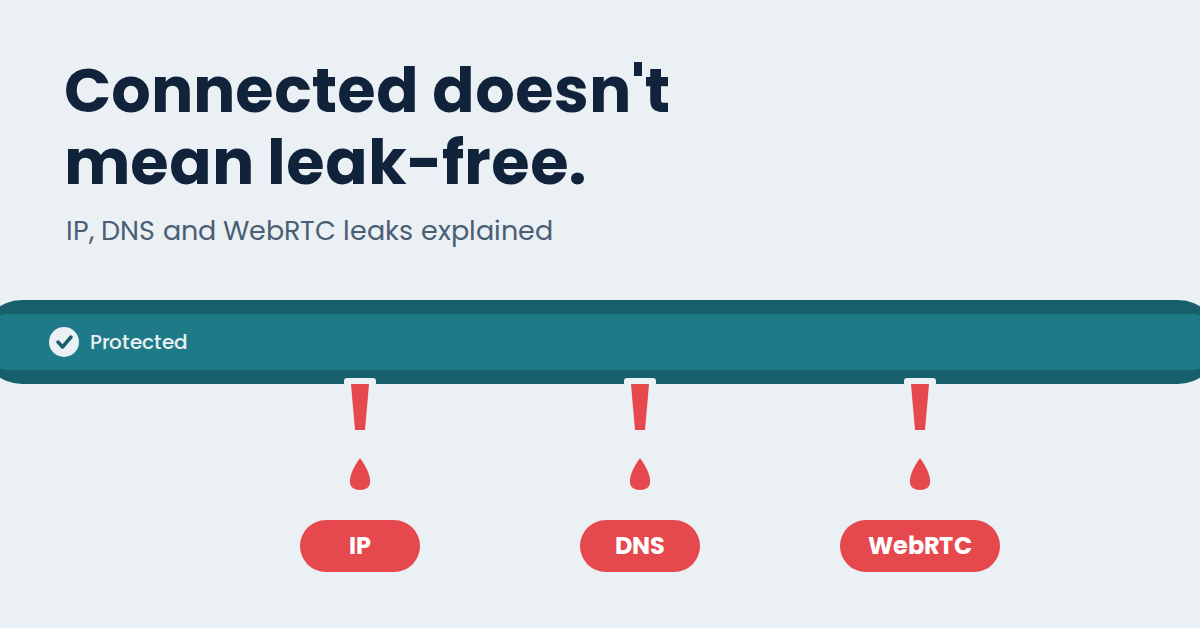
A VPN leak is when your real IP address, DNS lookups or browser data escape around the VPN tunnel, even while the app says Connected. There are four kinds: IP, DNS, WebRTC and IPv6. Each one needs its own test.
I have run these tests on NordVPN (Atlanta, Des Moines, Edinburgh) and ExpressVPN (New York, Columbus). Here is the quick version first, then the details.
The quick leak check
- Connect and wait until the app says Connected.
- Check your IP. The city, country and ISP should match the VPN server.
- Run a DNS leak test. None of the servers should belong to your home ISP.
- Run a WebRTC test. Your real public IP should not appear.
- Check IPv6 at test-ipv6.com.
What your result means
| What you see | What it means |
|---|---|
| Your real ISP or home city appears | A leak. Reconnect, then try a different server or protocol |
| Only VPN details appear | Clean for that test |
| One test is clean and another fails | Each leak type is separate, so fix the one that failed |
“Is my VPN actually working?” is a question I get asked a lot, and my answer never changes: connected does not mean leak-free.
The worst part of a leak is that the app can keep saying “Protected” the whole time. No warning, no red banner, nothing. After seeing that happen a few times, I stopped trusting the green checkmark on its own. Three kinds of leak come up constantly, plus a fourth that people tend to forget, and each one escapes through a different part of your connection.

The short version
- IP leak: your real public IP shows up instead of the VPN server’s.
- DNS leak: your website lookups go to your normal provider’s DNS servers instead of through the VPN.
- WebRTC leak: your browser hands out your real IP through a feature built for video and voice calls, even while the VPN is on.
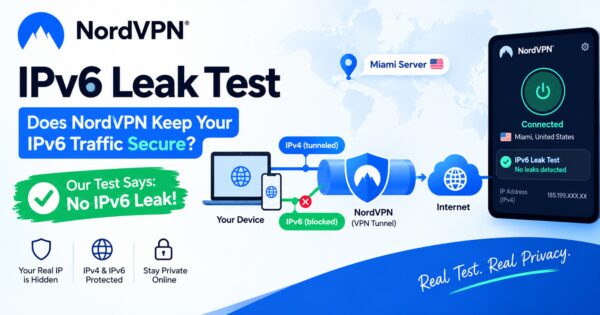
- IPv6 leak: your connection uses IPv6 and skips the tunnel, because the VPN only covered IPv4.
Passing one test tells you nothing about the other three, and that is usually where people get caught out.
What is in this guide
- IP leak
- DNS leak
- WebRTC leak
- IPv6 leak
- The four leaks at a glance
- Mistakes that ruin a leak test
- How to fix each leak
- A simple routine you can repeat
- FAQ
IP Leak: Your Real Address Showing Through
Every device online has a public IP address. Without a VPN, yours points back to your internet provider and roughly to where you live. The whole point of turning a VPN on is that websites see the server’s address instead of yours.
An IP leak means that is not happening, even though the app says you are connected. Sometimes the VPN drops for a few seconds and your phone quietly falls back to the open internet before you notice. Sometimes an app finds its own way around the tunnel, which can happen with split tunneling when an app is excluded from the VPN.
How to test for an IP leak
- Connect to your VPN and make sure the app really says Connected, not “Connecting.”
- Open browserleaks.com/ip or opentracker.net in a fresh browser tab.
- Look at the city, country and ISP it shows.
- Compare those with the server you picked inside the VPN app.
If the city, country and ISP match the VPN server, you are clean. If you see your real ISP or your home city, you have an IP leak.

Before your phone can load a website, it has to look up the site’s address. That lookup is DNS. Normally your internet provider handles it, which means they can see which sites you visit even though they cannot see what is on the page.
A DNS leak happens when those lookups still go to your regular provider’s servers while the VPN is supposed to be handling everything. Your IP can look perfect and your DNS can still be telling your provider where you go.
How to test for a DNS leak
- Connect to your VPN server.
- Open dnsleaktest.com and run the Standard test, or the Extended test if you want a longer list.
- Wait for the DNS servers to load.
- Read the ISP name and country next to every server on the list.
None of the DNS servers should belong to your home ISP or show your real country. If your home ISP’s name shows up even once, something is leaking. Many VPNs use their own DNS. Some use big public resolvers such as Cloudflare or Google behind the scenes, so a company name like that is not a leak on its own. Your own ISP’s name is.
Here is a test I ran recently while connected to NordVPN’s Des Moines server:
IPv6 Leak: The Fourth One People Miss

Some VPNs only route IPv4 traffic. If your internet provider also gives you an IPv6 address, your browser can quietly use IPv6 and skip the tunnel altogether.
To check, open test-ipv6.com while connected. If it shows your real IPv6 address, turn IPv6 off in your system settings or switch on IPv6 leak protection in the VPN app, then test again.
The Four Leaks at a Glance
| Leak | What escapes | Where it happens | Quick test |
|---|---|---|---|
| IP | Your real public IP | Dropped connection, app outside the tunnel | browserleaks.com/ip |
| DNS | Which sites you look up | DNS requests sent outside the VPN | dnsleaktest.com |
| WebRTC | Your real IP via the browser | Browser’s call feature | browserleaks.com/webrtc |
| IPv6 | Your real IPv6 address | VPN only covers IPv4 | test-ipv6.com |
Mistakes That Ruin a Leak Test
A bad test can fool you in both directions: it can say you’re fine when you’re not, or scare you when you’re fine. These are the ones I watch for.
- Testing before the VPN has finished connecting. Wait until the app says Connected, then open the test page.
- Reusing an old tab. Some test pages keep earlier results. Open a fresh tab, or refresh the page after you connect.
- Skipping the baseline. Run the test once with the VPN off too. That shows you what your real ISP looks like, so you can recognise it when it appears.
- Testing only one thing. A clean IP test says nothing about DNS or WebRTC.
- Forgetting about split tunneling. If an app or browser is excluded from the VPN, it will show your real details, because that’s what you told it to do.
- Trusting one result forever. Servers change, apps update and settings drift.
How to Fix Each Leak
IP leak fix
- Turn on the kill switch (in ExpressVPN it’s called the Internet Kill Switch, and older versions call it Network Lock).
- Turn IPv6 off in your system or in the VPN app.
- Check whether any app is excluded by split tunneling.
- Reconnect and test again.
DNS leak fix
- Switch on DNS leak protection in the VPN app, if your app has that option.
- Let the VPN use its own DNS servers. That’s usually the default.
- On Android, set Private DNS to Off or Automatic.
- Check the secure DNS setting in your browser.
- Flush your DNS cache. On Windows, run
ipconfig /flushdns. On macOS, runsudo dscacheutil -flushcacheand thensudo killall -HUP mDNSResponder.
WebRTC leak fix
- Firefox: type about:config in the address bar and set
media.peerconnection.enabledto false. - Chrome: use a WebRTC control extension from a source you trust, or the VPN’s own browser extension if it has one.
- Brave: open Settings > Privacy and security and look for the WebRTC IP handling policy. Menu names can change between versions.
IPv6 leak fix
- Turn IPv6 off in your network adapter settings, or
- Switch on IPv6 leak protection inside the VPN app.
A Simple Routine You Can Repeat
- Connect to a VPN server and make sure the app says Connected.
- Check your IP with a lookup tool. The city, country and ISP should match the VPN, not you.
- Run a DNS leak test. Every DNS server should belong to the VPN’s network.
- Run a WebRTC test in your browser. None of the IPs shown should be your real one.
- Check IPv6 at test-ipv6.com.
If anything shows your real details, reconnect first. If it still shows up, try a different server or protocol before you decide the VPN is broken.
Why Passing One Test Isn’t Enough
These leaks happen at different layers. IP leaks come from your actual network connection. DNS leaks come from where your lookups get sent. WebRTC leaks come from how your browser behaves. A VPN can handle one well and still fail another.
That’s why I test them separately and never treat “Connected” as proof of anything.
FAQ
What is the most common type of VPN leak? From what I see, DNS leaks. Most people check their IP address and never think to test DNS on its own.
Does a kill switch stop all four leak types? No. A kill switch mainly cuts your internet when the VPN connection drops, which helps with IP and DNS exposure during a disconnect. It isn’t built to stop WebRTC leaks, because those can happen while the VPN is up and working.
Can a VPN leak happen when the app says “Connected”? Yes, and it’s the main thing I’d like you to take from this article. The status only tells you the tunnel is active. It doesn’t tell you whether anything is leaking.
How often should I test for VPN leaks? I don’t follow a strict schedule. I test when I switch servers, change protocols or update the app, because any of those can quietly change how the connection behaves.
Is a VPN leak the same as a VPN being detected? No. A leak exposes your real information. Detection is when a service works out that you’re using a VPN at all, even if nothing about your real identity leaked. I cover that in my VPN detection tool test.
Do free VPNs leak more? Some free VPNs skip features like a kill switch or DNS leak protection. I haven’t tested free VPNs for this article, so run the same tests on any VPN you use instead of assuming.
Can a VPN leak expose my data? An IP or DNS leak shows which sites you visit and roughly where you are. It doesn’t directly expose passwords or encrypted traffic, but it does undo a good part of the privacy you paid for.
Do I need to test on both phone and computer? If you use the VPN on both, yes. Browsers and operating systems behave differently, and a clean result on one doesn’t carry over to the other.