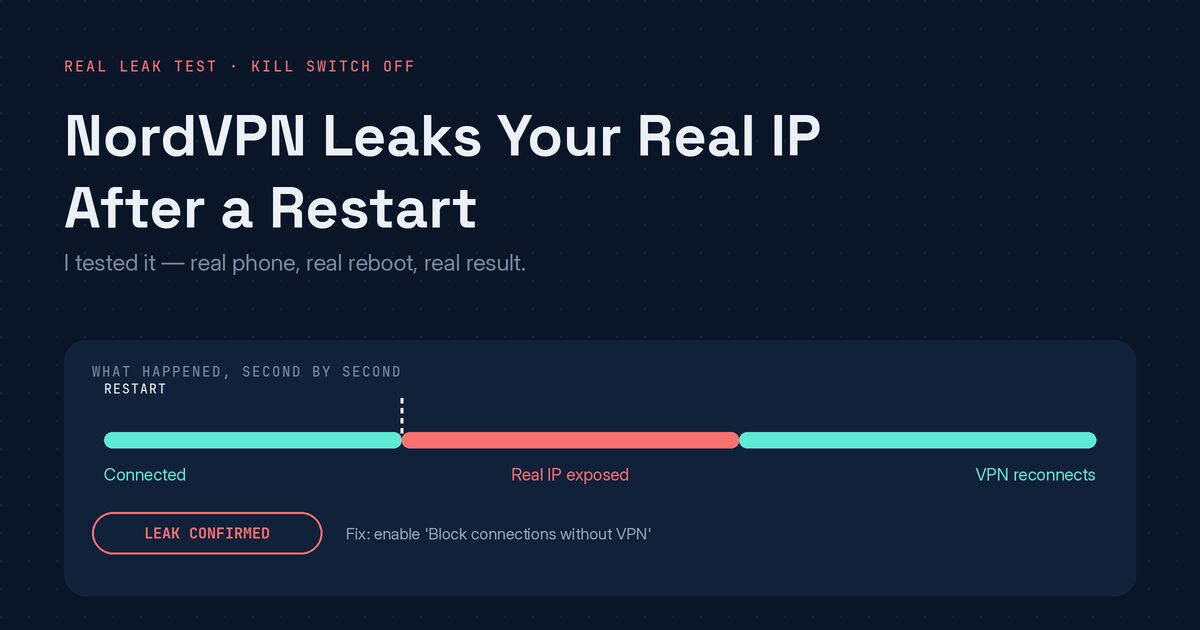
Quick answer: In my test, NordVPN leaked my real IP right after a phone restart, because the kill switch was off. The VPN hadn’t reconnected yet, and an IP checker opened immediately and showed a real IPv6 address instead of the UK address. It’s one phone, one restart and one server, but it shows what “no kill switch” looks like in practice.
Most kill-switch advice repeats one line: turn it on, or you’re exposed. Nobody shows what “exposed” actually looks like. So I set up the test that matters: VPN connected and working, kill switch off, phone restarted, and an IP check right away.
The setup
- VPN: NordVPN
- Server: Edinburgh, United Kingdom
- Kill switch: off (“Block connections without VPN” turned off)
- Device: my Android phone
- Test tool: a public IP and location checker
Step 1: confirm the VPN works first

NordVPN showed Connected and Secured, with a UK IP address. A separate IP check agreed: Edinburgh, UK, matching the app. That’s the baseline, with everything working the way it should.
Step 2: confirm the kill switch is off

This is the setting that’s supposed to stop your real traffic from going out if the VPN drops. I left it off on purpose, because plenty of people run their phone this way without realising what it means.
Step 3: restart the phone and check straight away

I didn’t close any app or force-stop anything. It was a normal restart, the kind that happens after an update or a random reboot. As soon as the phone came back on, before doing anything else, I opened the IP checker.
The result: NordVPN leaks your real IP
The checker showed a completely different address. It wasn’t the VPN’s UK IP. It was a real IPv6 address tied to an actual country, region and set of coordinates, and it wasn’t Edinburgh or anywhere in the UK. I covered the address in the screenshot. Which country it was doesn’t matter here. What matters is that a real one showed up at all.
What happened
My explanation is this. After a restart, the phone brings mobile data or Wi-Fi back before the VPN app has launched and reconnected. If nothing blocks traffic during that gap, anything that sends a request in that window goes out on the real connection instead of through the tunnel. Plenty of apps do that automatically the moment a phone reconnects.
I’d call it expected behaviour rather than a NordVPN bug. NordVPN says on its own kill switch page that on Android 7 or later, the kill switch comes from Android’s built-in “Always on VPN” feature. So the protection lives in the phone’s settings, and with it off, nothing stops that gap.
The gap wasn’t long, and it didn’t need to be. One IP check was enough to catch it.
Why a normal DNS leak test misses this
A standard DNS leak test checks the VPN while it’s sitting connected and stable, which is the moment it’s least likely to leak. The real risk is the window around disconnects, reconnects and restarts, when most people aren’t watching and assume the app is dealing with it. This test went after that window on purpose.
If you want to see what a clean result looks like in the stable state, compare it with my NordVPN DNS leak test on a London server. And for how DNS, IP and WebRTC leaks differ, read what a VPN leak is.
How to fix it on Android
On Android the kill switch is made of two settings in the phone’s own VPN menu, and it helps to know the difference:
- Always-on VPN makes the VPN start automatically and reconnect.
- Block connections without VPN stops all traffic until the VPN is connected.
Turn on both. NordVPN’s support page gives the path as Settings, Connections, More connection settings, VPN, then the cog icon next to NordVPN, where the Always-on VPN toggle sits. Menu names and paths differ between phone brands and Android versions, so if yours doesn’t match, search your settings for “VPN.”
With “Block connections without VPN” on, your phone should have no internet until the VPN reconnects. After a restart, “nothing loads for a few seconds” is the protected result, not a fault.
Test it yourself:
- Turn both settings on.
- Restart the phone.
- Open an IP checker straight away.
- Pages should fail to load until the VPN reconnects, and then show the VPN’s address.
I haven’t re-run my own test with the settings turned on yet. What I’m describing is how the feature is meant to work, so check it on your own phone rather than taking my word for it.
What this test doesn’t show
This was one phone, one restart and one server, so your result may differ. The checker showed an IPv6 address, and I can’t tell you from my screenshot whether an IPv4 address would have leaked too. I also don’t know how many seconds the gap lasted. And I only tested the kill switch off, which is the case that matters here.
Mistakes to avoid
- Assuming “connected” means protected. The app only protects you while it’s actually connected.
- Turning on Always-on VPN but not “Block connections without VPN.” The first reconnects faster, but it’s the second that blocks traffic in the gap.
- Testing a minute later. Check right after the restart, because that’s when the gap exists.
- Reading a no-internet result as a failure. With the block setting on, that’s the correct result until the VPN reconnects.
Frequently asked questions
Does NordVPN leak your IP after a restart? In this test, yes. With the kill switch off, a real IPv6 address showed up straight after the phone restarted, before the VPN had reconnected.
Is this a NordVPN bug? I don’t think so. It’s what happens on any phone without a kill switch enabled. The app can’t protect a connection before it has had the chance to reconnect.
Does turning on the kill switch fix it? It should. With “Block connections without VPN” on, the phone shouldn’t connect to the internet until the VPN is up. I haven’t re-tested with it on, so check it yourself.
Why didn’t a normal DNS leak test catch this? Because it checks the VPN while it’s connected and stable. The leak here only shows up in the gap around a restart.
Is this only an Android issue? My test was on Android, and the fix I describe is an Android feature. I haven’t tested other devices.
Tested on my own phone with the NordVPN app. Results vary by device, Android version and app version. I covered the leaked address in the screenshot and changed nothing else.