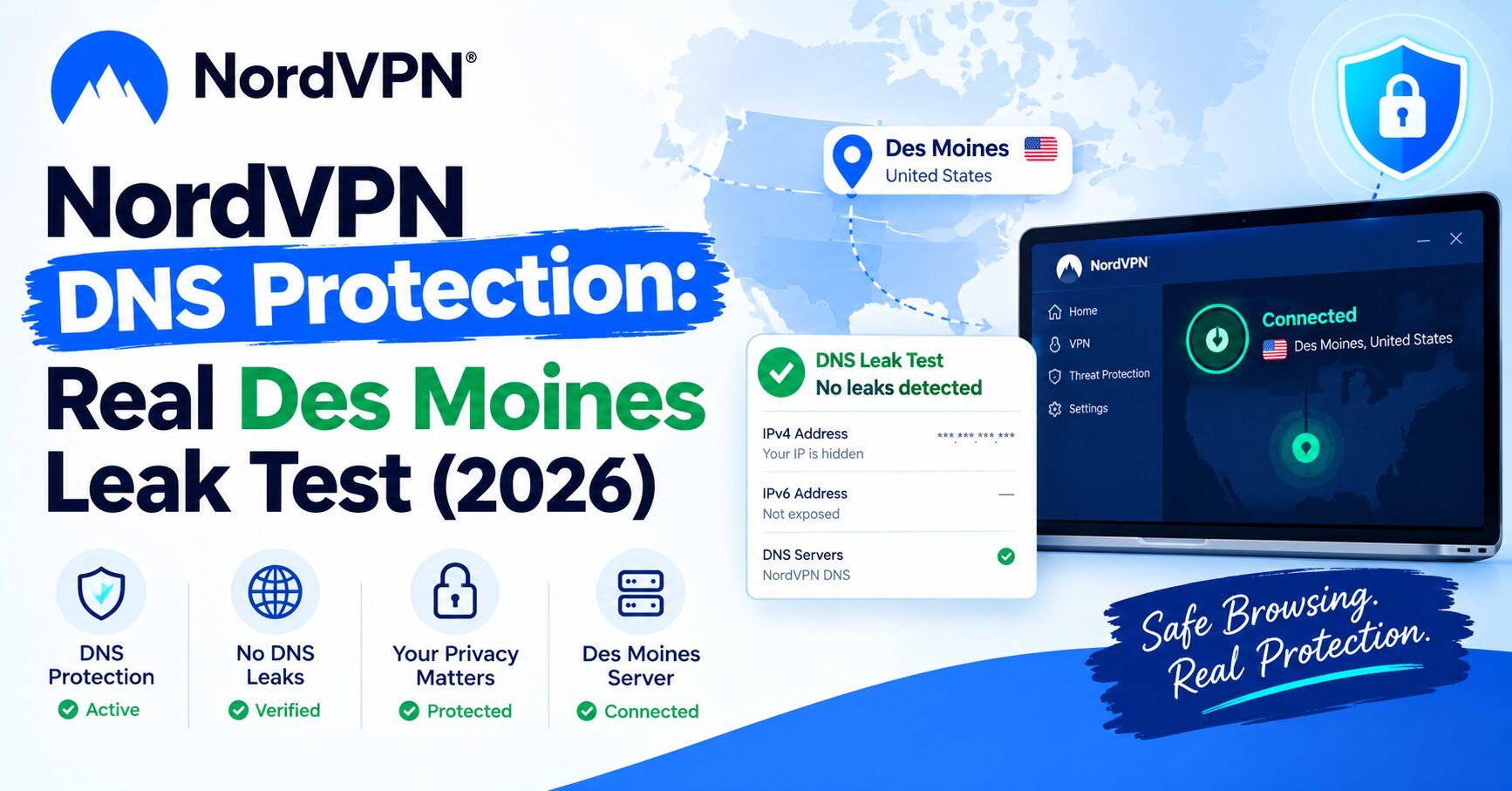
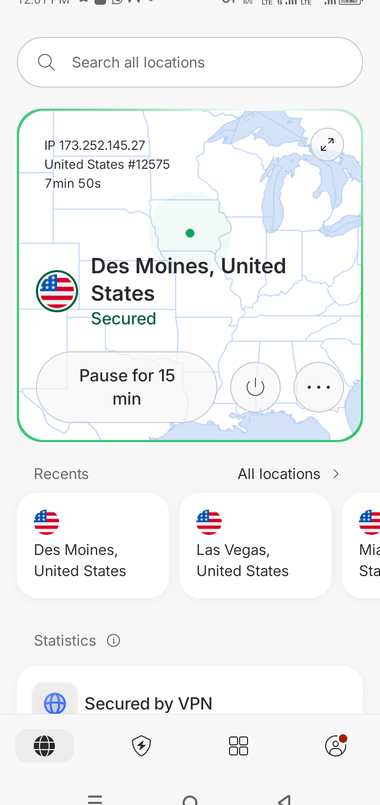
I tested NordVPN DNS protection the way I test most of these: connect to a server, then throw a leak-testing tool at it and see what comes back. This time it was NordVPN’s Des Moines, United States server, checked with an IPv6 readiness test.
Quick thing to get out of the way first. The tool I used, test-ipv6 .com, checks your public IPv4 address, your ISP, and whether an IPv6 address is exposed. It doesn’t hand you a list of DNS servers the way a dedicated DNS leak test does. If that’s specifically what you’re after, something like dnsleaktest.com is the right tool, and I haven’t run that version on this particular session yet.
Quick Answer
No IPv6 address showed up on this NordVPN Des Moines connection, so there was nothing for IPv6 to leak. The public IPv4 address and the ISP name both belonged to NordVPN’s network, not mine. The readiness score came back 0 out of 10, which sounds alarming at first glance, but in this context it just means the connection can’t be reached over IPv6 at all, not that anything leaked out.
What I Tested
- VPN: NordVPN
- Server: Des Moines, United States
- Status in the app: Secured, 7 minutes 50 seconds into the session
- Test tool: test-ipv6.com
The Results
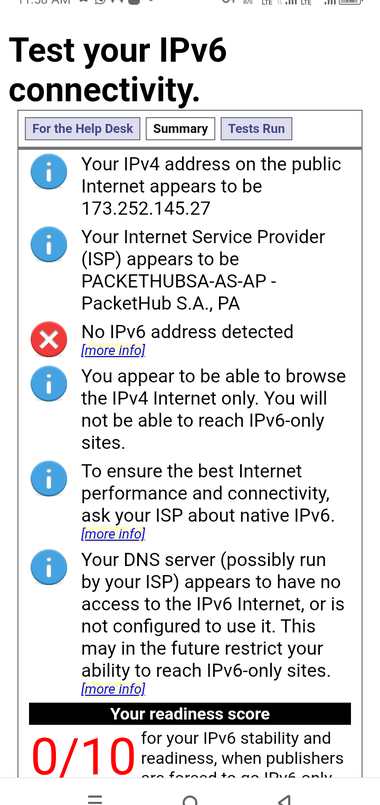
Here’s what the test reported:
- Public IPv4 address: 173.252.145.27
- ISP: PACKETHUBSA-AS-AP – PacketHub S.A., PA
- IPv6 address: none detected
- IPv6 readiness score: 0/10
What This Actually Tells You About NordVPN DNS Protection
The IPv4 address lined up with the VPN, not with me. That number, 173.252.145.27, is the exact same one NordVPN’s app showed for the Des Moines connection. So the test was looking at the VPN, not at anything real about my own network.
The ISP name backs that up too. PacketHub S.A. is the network behind that IP block, and that’s what showed up instead of my actual internet provider. That’s the result you want here: outside tools should see the VPN’s network, not your home or mobile connection.
No IPv6 means there was nothing to leak through IPv6, specifically. IPv6 leaks happen when a device has its own public IPv6 address that slips past the VPN tunnel, since a lot of VPN apps historically only covered IPv4 traffic. In this case there was no IPv6 address at all, so this particular leak path just wasn’t open. That’s a pass, but I want to be careful about what it does and doesn’t prove: it doesn’t confirm NordVPN would actively block IPv6 if my network actually had it available. All it shows is that, on this connection, at this time, IPv6 wasn’t exposed either way.
And the 0/10 score isn’t a security rating, even though it looks like one. test-ipv6.com is built for regular users checking if their connection can handle the modern, IPv6-based internet. A low score there basically just means “can’t reach IPv6-only sites,” which, while you’re on a VPN, is usually the safer side to be on. I wouldn’t read it as a grade on NordVPN.
What I Didn’t Test, and Why That Matters
This session didn’t include an actual DNS leak test, the kind that lists out the real DNS resolvers your traffic is using. That’s the test that would tell you whether DNS queries are going through NordVPN’s own resolvers or slipping out to something else, like your ISP’s default DNS. IPv6 readiness and DNS leak protection sound similar but they’re separate checks. Passing one doesn’t automatically mean you’d pass the other.
Running a Full DNS Leak Test Yourself
- Connect to whichever NordVPN server you want to test, and confirm the app shows Secured or Connected.
- Open a browser and go to a DNS leak testing site, dnsleaktest.com works fine.
- Run the extended or standard test, whichever it offers.
- Look at the DNS servers it lists. They should belong to NordVPN DNS Protection network or a DNS provider NordVPN uses, not to your home ISP.
- If your own ISP’s servers turn up in that list, that’s a leak, and switching servers or protocols is usually the first thing worth trying.
FAQ
What is a DNS leak?
It’s when your device’s website lookups go to your regular internet provider’s DNS servers instead of through the VPN, even while the rest of your traffic is tunneled properly. That can expose which sites you’re visiting.
What is an IPv6 leak?
It happens when your device has a public IPv6 address that isn’t covered by the VPN tunnel, so IPv6 traffic goes straight out to the internet instead of through the VPN.
Does having no IPv6 address mean I’m fully protected?
It means IPv6 wasn’t reachable during this particular test, so there was nothing to leak on that path. It’s not a substitute for a real DNS leak test, and it doesn’t confirm every part of your connection is covered.
Does NordVPN block IPv6 on purpose?
A lot of VPN providers, NordVPN included, either disable IPv6 on the device or route it through the tunnel specifically to avoid this kind of leak. I haven’t verified NordVPN’s current implementation of this myself, so take that as something worth checking against their own documentation rather than something I confirmed here.
Needs your input
- A DNS leak test screenshot (dnsleaktest.com or similar) from this same Des Moines session, so the article can show the actual DNS server list instead of just the IPv6 side of things.
- Which protocol NordVPN was running on for this connection (NordLynx, OpenVPN, etc.), since that can affect how IPv6 gets handled.
Facts to verify
- NordVPN’s own documentation on whether it blocks IPv6 traffic by default or tunnels it. Don’t state this as confirmed until it’s checked against their current help pages.
- Whether PacketHub S.A. is a data center NordVPN owns or leases, or a third party somewhere in the routing path. Doesn’t change the leak conclusion, but worth nailing down for future articles.
Related:ExpressVPN DNS Leak Test: Passed on London 2026 – Real Test